
Should I upgrade the RAM of my Apple Mac and can it be done. Updated 2022
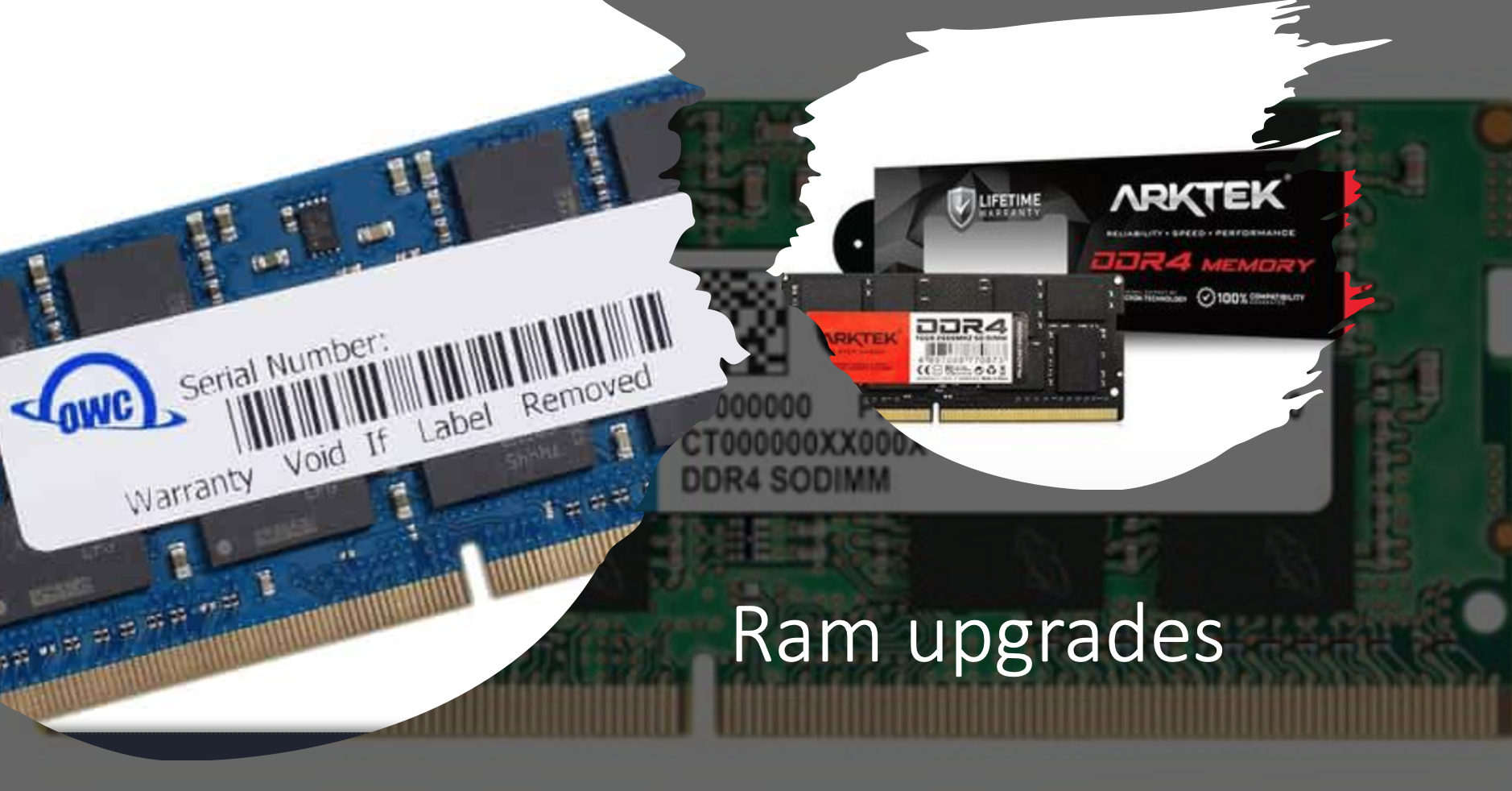
Does my MacBook allow RAM upgrades?
The memory known as RAM is the parts of your Mac that it uses while it is on and stores everything that it is thinking about.
RAM cannot be updated if the MacBook Pro has a Retina display and there is no update for any MacBook Air as well. In the majority of iMacs, the RAM can be updated except for the 21.5 models from mid-2014 and late 2015 with their RAM soldered into place.
What size should I consider for my upgrade?
8GB RAM: The minimum needed for any gaming PC but some games might need more.
16GB RAM: This amount is good for Windows and macOS systems and even more advanced gaming.
32GB RAM: For professionals and some demanding games.
64GB RAM: Needed for workstations.
Will you be able to speed up your Mac if you increase the RAM?
Generally, faster RAM will have faster-processing speed increasing the speed at which memory transfers information and making your Mac more efficient.
Although additional RAM could increase power consumption it is better to have too much and not too little RAM.
How to reduce RAM usage.
– Tidy up your Desktop.
– Close or merge Finder windows.
– Shut down web browser tabs and delete extensions.
– Make sure you have sufficient disk space.
Tips to increase your Mac’s speed.
– Restart occasionally.
– Delete your screen saver.
– Limit the number of web tabs open.
– Remove unused applications.
– Reduce the applications in your Dock.
Choosing the correct speed is important.
Once you have decided on the RAM you need it is important to choose the correct speed that is compatible with your Mac’s Logic Board as well as if you add a module it must be the same speed as the other one. It is advisable to use two identical RAM sizes.
The final outcome:
When you find your computer is being very slow an SSD could be the better way to go but adding the RAM can add that extra boost.
So for those who don’t need a RAM upgrade, the better choice might be getting an SSD, upgrading to a new CPU, or installing a new graphics card.
Contact Us
(+27) 083 656 8992
(+27) 079 053 9964
admin@zasupport.com
22 North Road, Dunkeld West, Johannesburg
Saturday: 9am – 1pm
Sunday: Closed
Get Started
Reach out to us to receive expert Apple support.
Simply complete our easy 2 minute book in form.
January 2023 Week 1 feedback on weekly Apple repair requests. Updated 2023
Week 1 Apple Mac repair request feedback. Updated 2023Week 1 Apple Mac repair requests feedback. Updated 2023 Good morning ZA Support readers. We get daily repair requests and in my weekly Article, I will explain some of these. Some of our clients...
MacOS Ventura is now available. Updated 2023
macOS Ventura is now available Updated 2023macOS Ventura is now available. macOS Venture includes new productivity tools and continuity features that make the Mac experience better than ever. Lots of New Benefits. Continuity Makes Apple Devices Work...
How to find out if your Apple Mac’s battery needs replacing. Updated 2023
How to find out if your Apple Mac’s battery needs replacing. Updated 2023 How to find out if your Apple Mac's battery needs replacing. Process: 1. Download the coconut battery version from the website. This a preliminary piece of software as read on early indicators...
Explanation of specifications regarding your Apple Mac. Updated 2023
Explanation of specifications regarding your Apple Mac. Explanation of specifications regarding your Apple Mac. Core There are performance-oriented and energy-efficient cores. Each core performs its own task and the more cores, the more powerful the...
The damage that liquid can cause to your Apple MacBook. Updated 2022
The damage that liquid can cause to your Apple MacBookThe damage that liquid can cause to your Apple MacBook Accidents happen but if you act fast you can save your computer from further damage. What to do? 1. Turn your Mac off immediately since leaving...
The backlight on my Apple MacBook Keyboard is not working. Updated 2022
The backlight on my Apple MacBook's Keyboard is not working.The backlight on my Apple MacBook's Keyboard is not working. When the keyboard's backlight starts acting up here are a few ways to get it working again. 1. You need to check the keyboard's backlight...